


Outlook for mobile is our recommended mobile email app. It's free and connects to your cPanel email account giving you access to your email.
- On your mobile device, download the Outlook app:
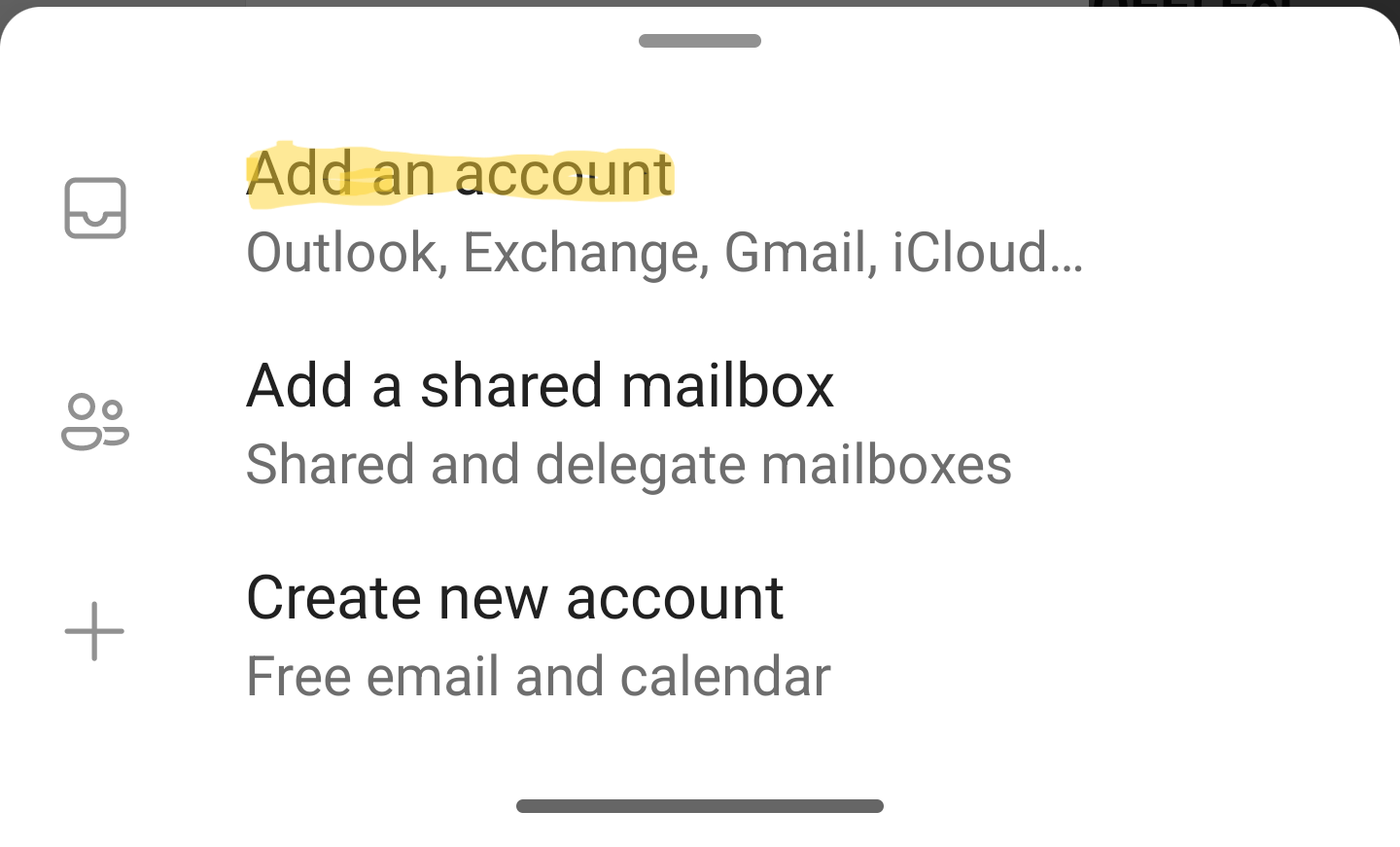
Microsoft Outlook for iOS and Android | Microsoft 365 - When asked to add a new account, select Add an account
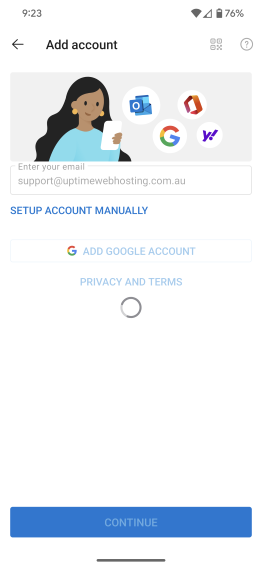
- Enter your email address and tap on the continue button. You can also tap on the SetUp Account Manually option when it appears.
- On the next screen, tap on Advanced Settings to display all of the required settings.
- Fill in all of the fields as follows:
Email address: your email address
Display name: your name
Description: optional description you would like for your mailbox. Can be left empty
IMAP incoming server: your mail server. Typically, this would be mail.yourdomainname
IMAP Port: 993
IMAP Username: your email address
IMAP Password: your email address password
IMAP Security Type: SSL/TLS
SMTP incoming server: your mail server. Typically, this would be mail.yourdomainname
SMTP Port: 465
SMTP Username: your email address
SMTP Password: your email address password
SMTP Security Type: SSL/TLS - Tap the tick button to complete the settings screen.
- Your emails and folders will now start to sync to your mobile
